DOCUMENT UPLOAD
Simplifying document management within a loan application workflow.
ROLE
UI/UX Designer
TOOLS
Figma
WHAT I DESIGNED
-
Document upload experience
-
File status and error states
-
Confirmation and validation messaging
THE CONTEXT
A document workflow within a larger loan process
Within Package Details, Loan Officers can access: Information · Requests · Documents.
The Documents section serves as the repository for documents associated with a loan application. Documents are organized by category and may be added at different points throughout the loan process.

THE CHALLENGE
Make document uploads quick without sacrificing clarity
The initial requirement from the Product Owner was straightforward: make it easy for Loan Officers to upload documents with minimal clicks and clearly see the documents associated with an application.
Speed was particularly important because a Loan Officer may need to upload multiple documents for one application while managing more than one application at a time. The upload process needed to be efficient without becoming a time-consuming task.
There was another consideration: the component was intended to be a global component used across multiple teams and workflows within FLEX.
That meant the solution needed to establish a consistent core experience while allowing for meaningful differences between workflows.
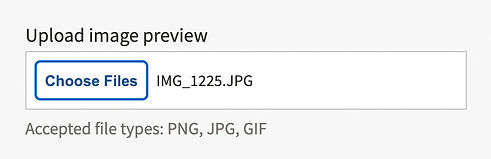
The existing FPAC file uploader provided the starting point, but it introduced friction when working with multiple files.
The interaction required: Choose Files → Review → Upload
When one file was selected, its filename was displayed in the staging area. When multiple files were selected, however, the component displayed only the number of files: “4 files.”
FPAC file uploader with single file

FPAC File uploader with multiple files
UNDERSTANDING THE WORKFLOW
The upload was only part of the problem
Rather than redesigning the uploader based solely on the initial requirement, I met with the Product Owner and gathered requirements across the teams that would use the global component.
This helped identify which information and behaviors needed to remain consistent across workflows and where the component needed to adapt to team-specific needs.
One important requirement emerged from the loan workflow: a document may be received on one date but uploaded into the application on another.
The Received Date has important operational implications. It establishes the official processing queue, triggers statutory agency response deadlines, and can determine funding priority when annual appropriated financial resources are limited.
This meant the experience needed to clearly distinguish between:
-
Received Date — When the agency received the document.
-
Uploaded Date — When the document was added to the application.
This distinction also influenced how the two dates were handled in the interface: the Received Date could be entered manually by the Loan Officer, while the Uploaded Date could be captured automatically by the system.
Key insight
The date a document is received is not simply another piece of document metadata — it can affect how the application is processed.
DESIGNING FOR A GLOBAL COMPONENT
One core experience, with flexibility where it mattered
The component needed to work across multiple teams without creating unnecessary variations. I used the requirements gathered across workflows to define a core experience and identify where a focused variation was appropriate.
Default experience
For workflows where the Received Date was important, the document list included: Document · Uploaded Date · Received Date · Actions.
Compact variation
The Set Aside team had different needs. Received Date was not relevant to their workflow, and limited screen real estate made the full version of the component difficult to accommodate.
For this workflow, I created a tighter variation without Received Date while preserving the core upload and document-management experience.

Default experience

Compact variation
THE DESIGN
From file upload to document management
I shifted the focus from simply uploading files to supporting the broader document workflow.
Simplify the upload
Reduce unnecessary steps and make the process efficient for multiple-document uploads.
Make uploaded documents visible
Display individual documents clearly rather than relying on a file count.
Provide meaningful document information
Include Uploaded Date and Received Date where they were relevant to the workflow.
Give users clear feedback and control
Add Save and Cancel actions and provide clear feedback for successful and unsuccessful uploads.
THE FINAL EXPERIENCE
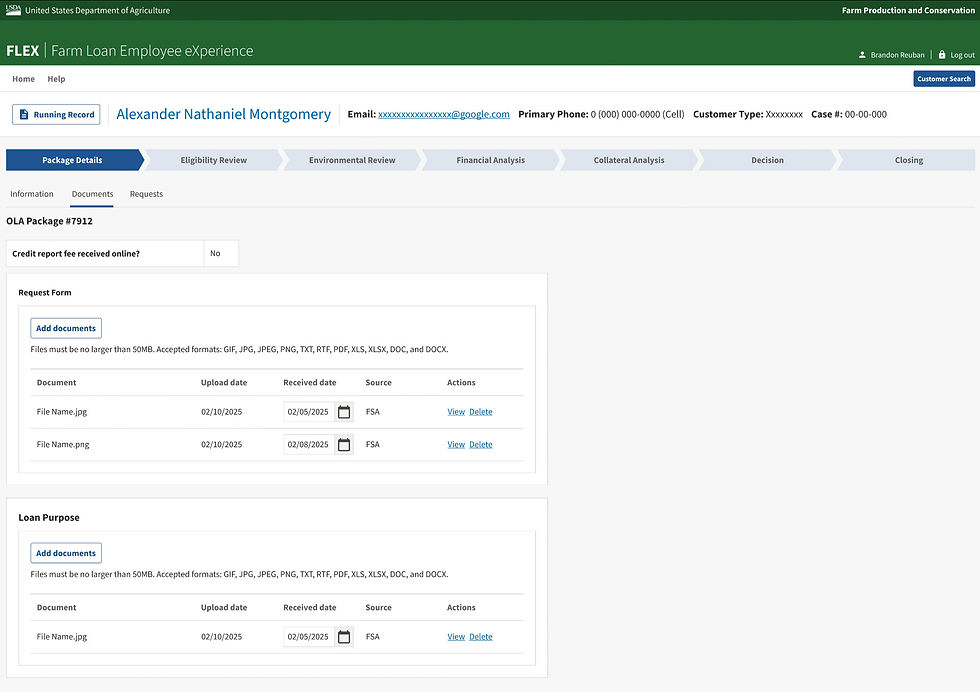
The redesigned document area provides a clearer view of the documents associated with an application, along with the information and actions needed to manage them.
Individual document visibility
Each uploaded document is displayed so users can see what has been added.
Received Date + Uploaded DateThe two dates communicate different points in the document’s lifecycle. The Received Date is entered manually using a date picker, while the Uploaded Date is automatically populated by the system when the document is uploaded. This keeps the dates distinct when a document is received before it is uploaded.
Save + Cancel
Users have explicit control over completing or cancelling the upload interaction.
DESIGNING FOR DIFFERENT UPLOAD STATES
Users should always know what happened
I also designed the different states needed to help users understand what happened after selecting and saving files.
Success
Files saved successfully.
Invalid file format
Invalid file format. Accepted formats: GIF, JPG, JPEG, PNG, TXT, RTF, PDF, XLS, XLSX, DOC, and DOCX.
File size
Upload failed. Files must not exceed 50 MB in size.
General upload failure
Upload failed. Please try again later.

ITERATING ON THE DETAILS
Small wording decisions can have a big impact
For example, we considered different labels for the document's received date, including Date Received and Received Date.
We ultimately chose Received Date to clearly represent the date the agency received the document and distinguish it from the date the file was uploaded into the application.
These details mattered because the labels needed to accurately reflect the underlying business process, not simply describe what appeared on screen.
OUTCOME
A more efficient and adaptable document workflow
The redesigned experience was well received by the Product Owner and implemented as part of the MVP.
The redesigned experience made a frequently repeated task more efficient, while giving Loan Officers greater visibility into their documents and clearer feedback during the upload process.
The global component also supported different team needs through a focused compact variation rather than forcing the same configuration across every workflow.